Network configuration#
Note
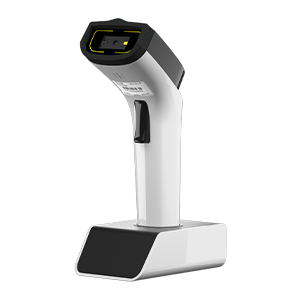
Only applicable to Barcode Readers that support Wi-Fi transmission, such as DS2800.
Dynamic IP address configuration#
1. Restore Wi-Fi module default settings#

Restore Wi-Fi module default settings#
2. Set dynamic IP mode#

Set dynamic IP mode#
3. Restart the scanner#

Restart the Barcode Reader#
4. Configure transmission method#
After configuring the network parameters, you can continue to configure the following transmission methods as needed:
Static IP address configuration#
1. Restore Wi-Fi module default settings#
Restore Wi-Fi module default settings#
2. Set static IP mode#

Set static IP mode#
3. Restart the scanner#
Restart the Barcode Reader#
4. Set IP address#
Static command instructions
If the interactive HTML tool is unavailable, replace the placeholders as described in this section and verify the command.
AT+SIP=<ipv4-address>
5. Set gateway#
Static command instructions
If the interactive HTML tool is unavailable, replace the placeholders as described in this section and verify the command.
AT+GW=<ipv4-gateway>
6. Set subnet mask#
Static command instructions
If the interactive HTML tool is unavailable, replace the placeholders as described in this section and verify the command.
AT+MASK=<ipv4-subnet-mask>
7. Configure transmission method#
After configuring the network parameters, you can continue to configure the following transmission methods as needed: